How to Convert OLM to MBOX Without Losing Emails, Attachments & Folder Structure
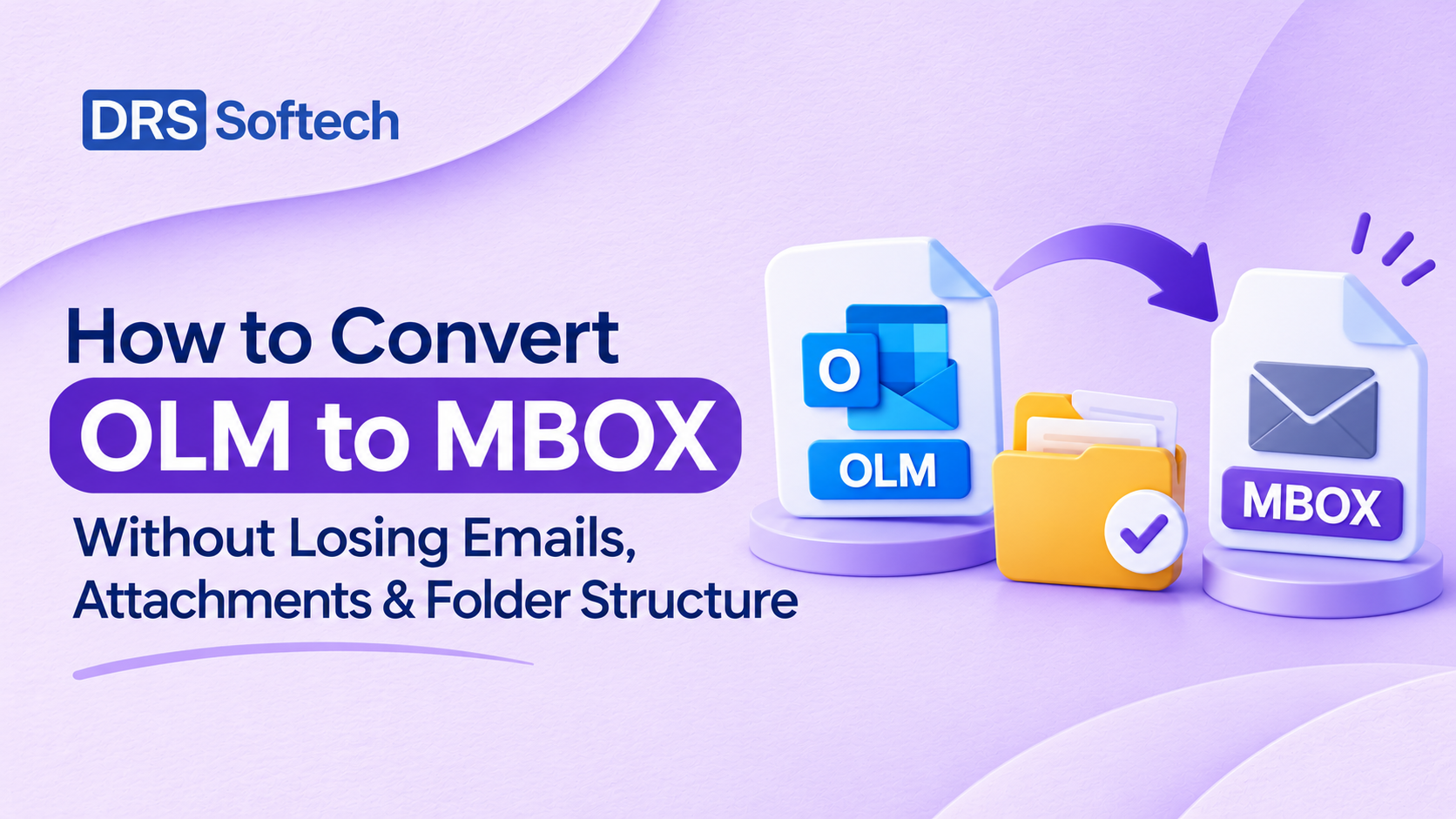
Switching from Outlook for Mac to Apple Mail, Thunderbird, or another MBOX-based email client sounds simple until you try it. OLM is Outlook for Mac's proprietary format, and most other clients can't read it. The fix is to convert OLM to MBOX, a format that nearly every non-Outlook client supports. Done carelessly, though, you can end up with missing emails, detached attachments, and a flattened folder tree.
This guide explains why the conversion matters, what to watch for, and how to use a dedicated OLM to MBOX converter to export Outlook for Mac OLM files to MBOX format safely.
What Are OLM and MBOX Files?
An OLM file is the archive Outlook for Mac uses to store emails, contacts, calendars, and tasks. It doesn't work with Windows Outlook, which uses PST, or with most other email programs.
An MBOX file is a widely supported mailbox format used by Apple Mail, Thunderbird, and many other clients. That's why OLM to MBOX conversion is the most common route for people leaving Outlook for Mac.
Why Convert OLM Files to MBOX?
- Switching email clients: Moving from Outlook for Mac to Apple Mail or Thunderbird requires a format those apps can import.
- Archiving and backup: MBOX is easy to store and re-import later.
- Cross-platform access: Once your data is in MBOX, you aren't tied to a single application.
- Bulk migrations: Teams and organizations often need to move many OLM files at once.
What Can Go Wrong During Conversion?
A poor conversion method can cause:
- Emails missing from the output file
- Attachments dropped or corrupted
- Folders and subfolders merged into one flat list
- Lost metadata, such as headers, subjects, and timestamps
- Duplicate emails inflating the new mailbox
A reliable converter needs to guard against every one of these.
The Smarter Way: Use an OLM to MBOX Converter
The DRS Softech OLM Converter Tool converts OLM files into MBOX while keeping your data intact. It handles emails, contacts, calendars, and attachments, keeps your folders and subfolders in their original structure, and preserves metadata such as email headers, attachments, subjects, and timestamps.
Key Features That Protect Your Data
1. Original folder hierarchy preserved
Your folders and subfolders are copied into the MBOX output exactly as they were, so you don't have to reorganize afterward.
2. Complete data integrity
Email headers, attachments, subjects, and timestamps stay intact throughout the process.
3. Batch conversion
Add multiple OLM files, or an entire folder, and convert them at once instead of one at a time.
4. Preview before you convert
Browse the contents of your OLM files first to confirm you've selected the right data.
5. Selective conversion and date range filter
Convert only specific folders, or filter by date, sender, or subject. You skip unnecessary data and finish faster.
6. Duplicate email removal
The tool identifies duplicates by criteria such as sender, recipient, subject, and body, so your new mailbox stays clean.
7. Flexible attachment handling
Keep attachments inside the emails, exclude them, or save them separately in a folder of your choice.
8. No file size limit
Large OLM files convert without size restrictions.
9. No Outlook installation required
You don't need the Outlook application installed to run the conversion.
10. Wide version support
The tool supports OLM files from various versions of Outlook for Mac, including older ones like Outlook 2011, up to the latest.
How to Convert OLM Files to MBOX: Step by Step
- Download and install the DRS Softech OLM Converter on your system.
- Add your files. Choose "Select Files" or "Select Folder" to load one or more OLM files.
- Preview and select the emails or folders you want to convert, then click Proceed.
- Choose the output format. Click "Save in File Format" and select MBOX from the list.
- Apply options. Set any basic or advanced features, such as date filter, duplicate removal, or attachment handling, then press Start Export.
When the export finishes, import the MBOX file into Apple Mail, Thunderbird, or your client of choice.
Beyond MBOX: Other Formats and Destinations
The same tool can also export OLM data to:
- File formats: PST, EML, EMLX, MSG, PDF, CSV, HTML, MHTML, DOC, DOCX, and more
- Email clients and services: Office 365, G Suite, Gmail, Yahoo, Thunderbird, AOL, Hotmail, IMAP, Zoho Mail, iCloud, and others
That's handy if your plans change midway, for example if you decide to open your Mac data in Windows Outlook through PST instead.
Free vs. Full Version
| Feature | Free Version | Full Version |
|---|---|---|
| Convert OLM to MBOX and other formats | 50 items per folder | Complete folder |
| Migrate to email clients | 50 items per folder | Complete folder |
| Batch conversion, preview, date filter | ✔ | ✔ |
| Duplicate removal | ✔ | ✔ |
| Folder structure and data integrity | ✔ | ✔ |
| No file size limit | ✔ | ✔ |
The free demo lets you test the process on up to 50 items per folder, so you can verify the output before buying the full version.
Tips for a Smooth OLM to MBOX Conversion
- Back up your OLM files before you start.
- Use the preview to confirm the right folders are selected.
- Run a demo conversion to check the results in your target email client.
- Enable duplicate removal if your archive has been merged or restored before.
- Use the date filter to convert only recent mail if you don't need the full history.
Frequently Asked Questions
Will my folder structure be preserved?
Yes. The tool keeps folders and subfolders in their original hierarchy.
Can I convert multiple OLM files at once?
Yes. Batch conversion processes multiple files in a few clicks.
Do I need Outlook installed?
No. The tool runs without the Outlook application.
Are attachments included?
Yes by default. You can also exclude them or save them separately.
Is there a file size limit?
No. The tool places no limit on OLM file size.
Conclusion
Converting OLM to MBOX doesn't have to mean lost emails or a scrambled mailbox. With a dedicated OLM to MBOX converter, you can move your Outlook for Mac data into Apple Mail, Thunderbird, or any other MBOX-compatible client while keeping emails, attachments, metadata, and folder structure intact.
Ready to try it? Download the DRS Softech OLM Converter and run the free demo on your own files first.
About the author
- William Harris is a skilled IT professional with over 5+ years of experience in email migration and cloud migration solutions. Currently working at DRS Softech, he specializes in seamlessly transferring emails, contacts, and other critical data across platforms such as Microsoft 365, Google Workspace, IMAP, and various cloud-based services. At DRS Softech, he plays a key role in delivering reliable and efficient migration solutions, helping organizations modernize their IT infrastructure while ensuring business continuity and security.
Comments
Join the discussionNo comments yet. Be the first to comment.